
Overview

Service Requests are formal records of customer inquiries, issues, or requests for service. They provide a structured intake process that ensures no customer request is lost or forgotten, tracks response times, and creates accountability for follow-through. Service Requests List View
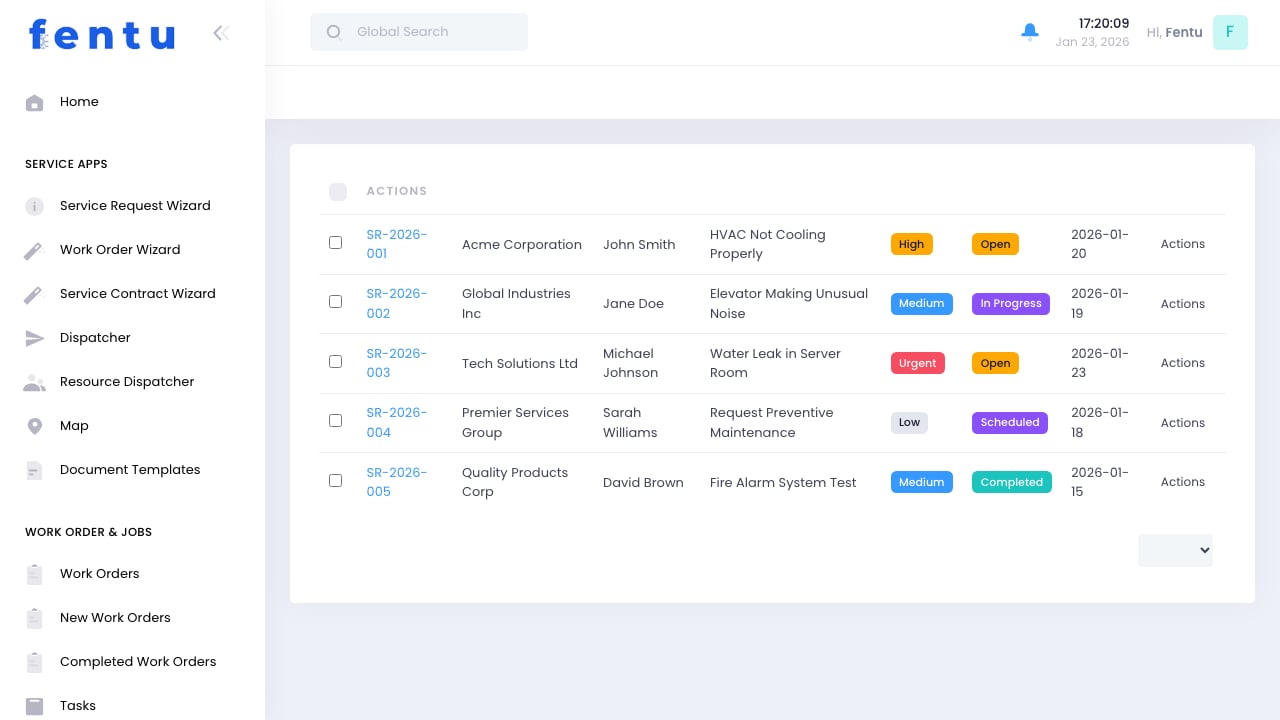
Service requests bridge the gap between customer contact and work order creation. They provide a formal tracking system for all incoming requests, whether from phone calls, emails, customer portals, or walk-ins.

When to Use Service Requests

Use Service Requests when you need to:
  • Log incoming customer service calls or inquiries
  • Track requests from initial contact through resolution
  • Ensure no customer request is lost or forgotten
  • Monitor response times and service level commitments
  • Convert requests to work orders or quotes
  • Provide customers visibility into request status
  • Generate reports on request volume and response metrics
  • Document customer interactions for quality assurance

Service Request Workflow

The Request Lifecycle

Customer Reports Issue
  └─> Service Request Created
      └─> Request Evaluated
          ├─> Covered by Contract → Create Work Order
          ├─> Not Covered → Generate Quote
          └─> Complaint or Escalation → Create Complaint Record
      └─> Service Delivered
          └─> Request Closed
Key Stages:
  1. Intake - Customer contacts you (phone, email, portal, walk-in)
  2. Documentation - Create service request record with all details
  3. Evaluation - Determine if covered by contract, requires quote, or is a complaint
  4. Action - Create work order, generate quote, or escalate as needed
  5. Tracking - Monitor progress until resolution
  6. Closure - Close request when customer is satisfied

Service Requests List View

Key Features

Visual priority levels: Urgent, High, Medium, Low. Quickly identify which requests need immediate attention.
See request status at a glance: Open, In Progress, Scheduled, Completed, Cancelled. Filter by status to manage workload.
Each request shows customer name, contact person, and contact information for easy follow-up.
Action buttons provide fast access to create work orders, generate quotes, escalate to complaints, or contact customers.

List Columns

ColumnDescription
Request IDUnique identifier for tracking and reference
CustomerWhich customer submitted the request
ContactPerson who reported the issue
Subject/DescriptionBrief description of the request or issue
PriorityUrgent, High, Medium, or Low
StatusOpen, In Progress, Scheduled, Completed, or Cancelled
Submitted DateWhen the request was received
Due DateExpected response or completion date based on SLA
Assigned ToDispatcher or technician handling the request
ActionsCreate work order, generate quote, view details, contact customer

Creating a Service Request

1

Click 'New Service Request'

Click the ”+” button when customer contacts you.
2

Select Customer

Choose the customer from your database. If new customer, create customer record first.
3

Select Contact

Choose which person at the customer reported the issue.
4

Enter Request Details

Document the issue, symptoms, urgency, and any relevant context.
5

Set Priority

Assess urgency based on impact, safety, SLA requirements.
6

Link Asset (if applicable)

Select which equipment has the issue if request is asset-specific.
7

Assign for Follow-up

Assign to appropriate dispatcher or technician for evaluation.
8

Save

Request is logged and assigned person receives notification.

Service Request Fields

Basic Information

FieldDescription
Request IDAuto-generated unique identifier for tracking. Format typically: SR-YYYY-####
CustomerWhich customer is making the request. Required field.
ContactSpecific person who reported the issue. Should have phone/email for follow-up.
Submitted ByHow was request received: Phone, Email, Portal, Walk-in, Referred.
Date/Time ReceivedWhen customer first contacted you. Important for SLA tracking.
StatusCurrent state: Open, In Progress, Scheduled, Completed, Cancelled.

Request Details

FieldDescription
SubjectBrief one-line description: “HVAC not cooling”, “Water leak in lobby”, “Request quote for new installation”.
DescriptionDetailed explanation of the issue, symptoms, customer concerns. Include everything customer shared.
PriorityUrgency level based on impact and timing:
Urgent - Safety issue, major operations impact, immediate response required
High - Significant impact, needs quick resolution
Medium - Standard service request
Low - Minor issue, flexible timing
CategoryType of request: Emergency Repair, Routine Service, Inspection, Installation, Quote Request, Information.

Asset and Location

FieldDescription
AssetWhich equipment has the issue (if applicable). Helps determine service history and coverage.
LocationWhich customer site or building (if customer has multiple locations).
Specific AreaWhere at the location: “Rooftop”, “Basement”, “Floor 3 Conference Room”, etc. Helps technician find equipment.

Service Level and Coverage

FieldDescription
Service ContractIs customer covered by a service contract? If yes, which one? Determines if work is included or requires quote.
Covered Under ContractYes/No/Partial. If Yes, create work order. If No, generate quote. If Partial, specify what’s covered.
SLA Response TimeBased on contract or priority, when must you respond? (4 hours, 24 hours, etc.)
Due DateWhen does request need resolution? System calculates based on SLA or can be set manually.

Assignment and Action

FieldDescription
Assigned ToDispatcher or technician responsible for handling this request.
Action TakenWhat was done:
• Created Work Order (link to WO)
• Generated Quote (link to quote)
• Provided Information Only
• Escalated to Complaint
• Referred to Partner/Vendor
Work OrderLink to work order created from this request.
QuoteLink to quote generated if work not covered by contract.

Communication

FieldDescription
Customer NotifiedWas customer contacted about status? Date/time of notification.
Scheduled DateIf work order created, when is service scheduled?
Estimated CompletionWhen do you expect to complete the request?
NotesInternal notes, follow-up actions, special instructions.
Customer CommentsFeedback from customer, additional information they provided.

Service Request Processing

Evaluating Requests

When a service request comes in, evaluate it to determine the appropriate action:
Check: Does customer have an active contract? Is this issue covered?If Yes:
  1. Create work order under the contract
  2. Link work order to service request
  3. Update request status to “Scheduled”
  4. Notify customer of scheduled service date
Benefit: Fast response, no quote delays, customer satisfaction
Check: Customer has no contract, or issue not covered by existing contractActions:
  1. Evaluate scope and cost
  2. Generate quote with detailed pricing
  3. Send quote to customer for approval
  4. Update request status to “Pending Approval”
  5. Create work order after customer approves quote
Benefit: Protects margins, gets customer commitment before work
Check: Is there immediate danger, safety concern, or critical operations impact?Actions:
  1. Set priority to “Urgent”
  2. Create work order immediately (even if quote needed)
  3. Dispatch technician ASAP
  4. Handle quote/approval after safety is secured
  5. Document emergency response in request notes
Benefit: Demonstrates responsiveness, protects customer safety, builds trust
Check: Is this actually a complaint about previous service or billing?Actions:
  1. Create formal Complaint record
  2. Link complaint to service request
  3. Assign to appropriate manager for investigation
  4. Update request status to “Escalated”
  5. Follow complaint resolution process
Benefit: Proper handling, documentation, and resolution of complaints
Check: Customer just needs information, not actual serviceActions:
  1. Provide requested information (pricing, availability, procedures, etc.)
  2. Document what information was provided
  3. Update request status to “Completed”
  4. Log interaction for future reference
Benefit: Customer service without service call overhead

Priority Assessment

Set priority based on these factors:
PriorityWhen to UseResponse Time
UrgentSafety hazard, major operations down, no workaround, critical equipment failureImmediate (within 1-4 hours)
HighSignificant impact, limited workaround, contract SLA requires fast responseSame or next business day
MediumStandard service need, workaround available, normal business priorityWithin 2-5 business days
LowMinor issue, no immediate impact, customer flexible on timingWithin 1-2 weeks or scheduled maintenance
Be realistic with priorities. If everything is “Urgent,” nothing is urgent. Save urgent priority for true emergencies to maintain credibility with technicians and customers.

Converting Requests to Work Orders

When request is covered by contract or customer approves quote:
1

Open Service Request

Navigate to the service request ready for work order creation.
2

Click 'Create Work Order'

Use the action button to generate a work order from the request.
3

Work Order Pre-Populated

System auto-fills work order with: • Customer and contact from request • Asset and location • Issue description from request • Priority level • Link to parent request
4

Review and Enhance

Add tasks, assign technician, set schedule, attach parts or tools needed.
5

Save and Schedule

Work order is created and added to dispatcher’s queue for scheduling.
6

Request Auto-Updates

Service request status automatically changes to “Scheduled” and links to the work order.
Benefits of linking requests to work orders:
  • Complete traceability from initial call to completion
  • Metrics on response times
  • Customer can see request status
  • Quality assurance and training opportunities

Service Request Actions

Create Work Order

Generate a work order from this request if covered by contract or quote approved.

Generate Quote

Create a quote for work not covered by service contract.

Escalate to Complaint

Convert to formal complaint record if issue involves service quality or dispute.

Contact Customer

Call or email customer for follow-up, clarification, or status update.

Assign/Reassign

Change who’s responsible for handling this request.

Update Status

Move request through workflow: Open → In Progress → Scheduled → Completed.

Link to Contract

Associate request with a service contract if applicable.

View History

See all actions taken on this request, communications, and linked records.

Tips and Best Practices

Don’t rely on emails, sticky notes, or memory. Create a service request for:
  • Every phone call requesting service
  • Every email inquiry
  • Every walk-in customer
  • Every portal submission
If a customer asks for something, it gets a service request number. This prevents dropped requests and provides accountability.
Take an extra minute during the call to gather:
  • Exact symptoms and timeline
  • Which equipment or location
  • What customer already tried
  • Why they think it happened
  • How urgent it really is (vs what customer says)
Good initial documentation prevents callbacks for missing information.
Tell customers when they can expect:
  • Initial contact/acknowledgment (within 2 hours, end of business day, etc.)
  • Service visit (same day, within 24 hours, within 48 hours)
  • Resolution (depends on issue complexity)
Under-promise and over-deliver builds trust. Unrealistic promises damage credibility.
When request status changes, automatically notify customer:
  • In Progress - “We’ve received your request and are evaluating it”
  • Scheduled - “Service appointment set for [date/time]”
  • Completed - “Work has been completed, please confirm satisfaction”
Proactive communication reduces “where’s my technician” calls.
Monitor key metrics:
  • Time from request to first contact
  • Time from request to work order creation
  • Time from request to scheduled service
  • Time from request to completion
Response time metrics help identify bottlenecks and demonstrate service quality.
Service requests are teaching opportunities:
  • Explain what’s covered by contract vs. requires quote
  • Educate on preventive maintenance benefits
  • Demonstrate value of service contracts
  • Build relationships through responsive communication
Good request handling converts one-time customers to contract customers.
Don’t just mark requests “Completed” - actually confirm:
  • Customer received service
  • Customer is satisfied with results
  • No follow-up actions needed
  • Request can be closed
Proper closure prevents issues from resurfacing and ensures quality.

Common Questions

A Service Request is the initial customer contact - “Help, I have a problem!” A Work Order is the scheduled work to fix it.Service Request = Customer reporting an issue Work Order = Technician going to fix the issueOne service request may generate:
  • One work order (simple fix)
  • Multiple work orders (complex issue requiring several visits)
  • A quote (if not covered by contract)
  • No work order (information request only)
Yes, if the call involves:
  • Request for service
  • Report of an issue or problem
  • Question about scheduling service
  • Follow-up on previous issue
No, for:
  • General business inquiries
  • Billing questions (unless it’s a billing complaint)
  • Calls about existing open work orders (update the WO instead)
When in doubt, create the request. Better to have documentation than lose track of a customer need.
  1. Set priority to “Urgent”
  2. Create work order immediately (skip quote approval if safety issue)
  3. Dispatch available technician ASAP
  4. Notify customer of ETA
  5. Document as emergency in notes
  6. Handle billing/approval after safety is secured
True emergencies (safety hazards, critical equipment down) justify bypassing normal processes. Document why it qualified as emergency.
  1. Keep service request status as “Pending Quote”
  2. Generate quote from the request
  3. Send quote to customer
  4. Wait for customer approval
  5. When approved, create work order
  6. Update request status to “Scheduled”
Don’t create work orders before quote approval unless it’s an emergency or covered by contract.
Yes. If during evaluation you realize this isn’t a service request but actually a complaint about:
  • Previous service quality
  • Technician conduct
  • Billing disputes
  • Unresolved issues
Use the “Escalate to Complaint” action. This creates a formal complaint record and ensures proper handling.
Keep all service requests indefinitely for:
  • Complete service history
  • Pattern analysis (recurring issues)
  • Customer relationship context
  • Legal protection (documentation of customer requests and responses)
Storage is cheap, and historical data is valuable. Don’t delete completed requests.
Follow the quote process:
  1. Document request normally
  2. Evaluate scope and provide quote
  3. Send quote for approval
  4. Create work order only after approval
OR use it as opportunity to:
  • Explain benefits of service contracts
  • Offer discounted contract with first service
  • Convert one-time customer to contract customer
Service requests are sales opportunities.

Service Request Wizard

Step-by-step guide to creating service requests.

Work Orders

Service requests convert to work orders for service delivery.

Service Contracts

Check contract coverage when processing requests.

Complaints

Escalate service requests to complaints when appropriate.