
Overview
Checklists are configurable inspection and maintenance forms that technicians complete during service tasks. They ensure consistent procedures, capture required data, and document work performed. Checklists can be linked to products, product types, assets, and branches for targeted use.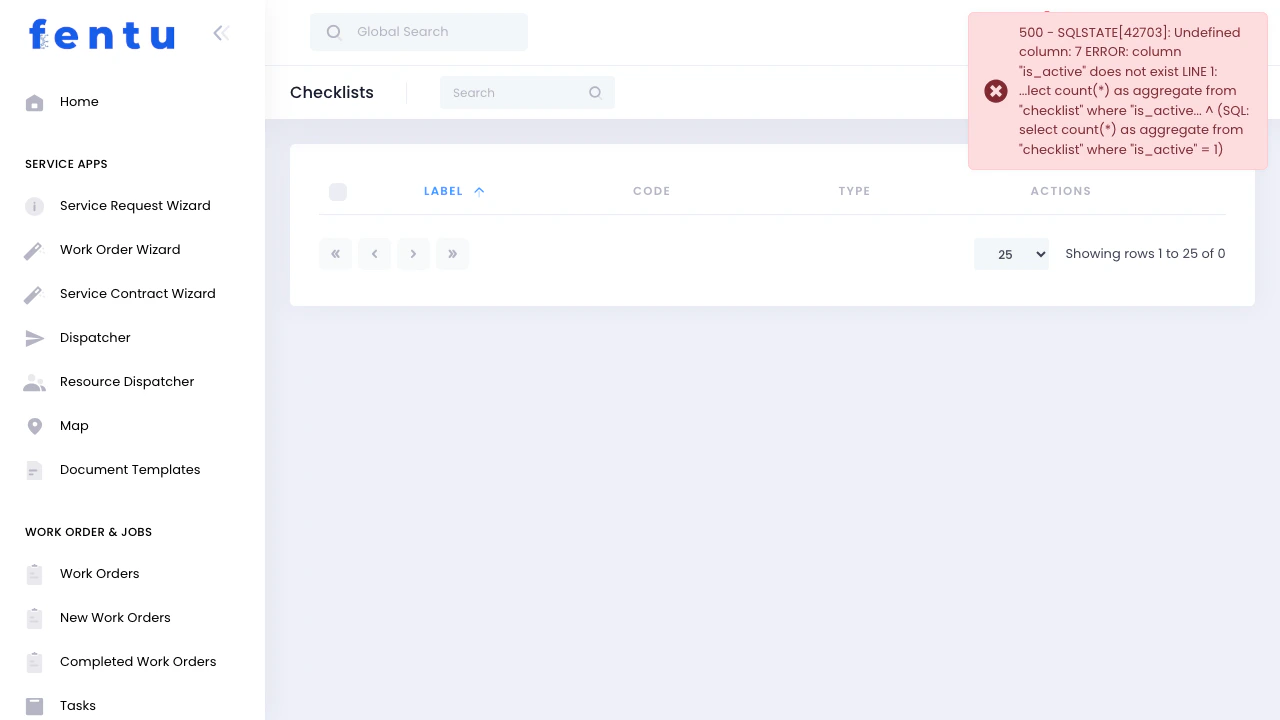
Checklists standardize service procedures. Instead of relying on technician memory, checklists guide them through each step, ensuring nothing is missed and all required data is captured.
When to Use Checklists
Create checklists to:- Standardize inspection procedures across technicians
- Ensure regulatory compliance (fire safety, elevator inspections)
- Capture required measurements and readings
- Document work performed with signatures and photos
- Guide technicians through complex procedures
- Create consistent service reports for customers
- Train new technicians on proper procedures
Key Capabilities
Execution Blocking
Mark checklist items or entire checklists as mandatory. The technician cannot close the task until all mandatory items are completed.
Asset Verification
Link checklists to specific assets, product types, or products. Checklists verify asset serial numbers and model details before work begins.
Structured Field Capture
Use readout templates to capture multiple structured measurements (Machine readings, electrical measurements) in a single checklist item.
Defect Handling
Mark items as defective or requiring follow-up. Defect annotations are carried forward to subsequent service visits.
Checklists List View
What You See
The Checklists list displays all configured checklists:List Features
- Search - Find checklists by name or code
- New - Create new checklist
- Actions - Edit or delete checklists
- Filter - Filter by type or branch assignment
- Sort - Click columns to sort
Creating a Checklist
When you click New:Basic Configuration
Checklist Detail View
After creating the checklist, configure the items technicians will complete:Checklist Items Tab
This is where you define the actual inspection steps and questions. Adding Items:- Click Add Item
- Configure each item:
Item Types
Checkbox
Checkbox
Simple yes/no or pass/fail check.Use For:
- “Door latches properly”
- “Battery voltage acceptable”
- “Safety labels present”
Text
Text
Free-text input for notes and descriptions.Use For:
- “Describe any damage observed”
- “Notes on customer concerns”
- “Additional findings”
Number
Number
Numeric input for measurements and counts.Use For:
- “Battery voltage (volts)”
- “Operating temperature (°F)”
- “Number of cycles completed”
Dropdown
Dropdown
Selection from predefined options.Use For:
- “Condition: Excellent / Good / Fair / Poor”
- “Action Required: None / Minor Repair / Major Repair / Replace”
- “Severity: Low / Medium / High / Critical”
Signature
Signature
Digital signature capture.Use For:
- “Technician signature”
- “Customer acceptance signature”
- “Supervisor approval”
Photo
Photo
Photo capture from device camera.Use For:
- “Photo of serial number plate”
- “Before/after comparison”
- “Document damage or repairs”
Asset Field Capture
Asset Field Capture
Allows the technician to scan or enter asset identifiers (such as a serial number) and capture or update specific fields on the linked asset record.Use For:
- “Capture asset serial number during installation”
- “Update firmware version field on the asset record”
- “Confirm asset model number matches documentation”
Readout
Readout
Links to a Readout Template to capture a structured set of measurements in one step — for example, an Machine service sheet with supply air temperature, return air temperature, and static pressure.Use For:
- Multi-point electrical or Machine measurement sheets
- Refrigerant readings (suction pressure, head pressure, superheat, subcooling)
- Vibration or noise levels at multiple sensor points
Create Asset Part
Create Asset Part
Prompts the technician to register a new part directly against the asset from within the checklist — for example, recording the exact filter part number installed.Use For:
- “Register replaced belt on the asset parts list”
- “Record installed filter part number and quantity”
- “Log new capacitor details on compressor asset”
Item Groups
Organize items into logical sections: Example Fire Door Checklist Groups:- Visual Inspection (items 1-5)
- Operational Testing (items 6-10)
- Safety Systems (items 11-15)
- Documentation (items 16-18)
- Easier for technicians to navigate
- Logical workflow through inspection
- Professional-looking reports
Conditional Logic (Triggers)
Checklist items can show, hide, or become required depending on the value of another item. This keeps checklists concise — technicians only see the items relevant to their answers. Each trigger rule is defined on a child item and has the following fields:Linking Checklists
To Products
- Open Product record
- Go to Checklists tab
- Add relevant checklists
- Result: All assets based on this product inherit these checklists
To Product Types
- Open Product Type record
- Go to Checklists tab
- Add checklists
- Result: All products of this type inherit these checklists
To Assets
- Open Asset record
- Go to Checklists tab
- Add asset-specific checklists
- Result: Only this specific asset uses these checklists
To Branches
Set Branch field when creating checklist. Result: Checklist only available in that branch (useful for regional compliance variations)Common Checklist Scenarios
Scenario 1: Creating Fire Safety Inspection Checklist
Goal: Standardize annual fire door inspections per code requirements Steps:- Create checklist: “Fire Door Annual Inspection”
- Set Type: “Maintenance”
- Set Is Risk Assessment: checked
- Add items:
- (Checkbox) “Door closes completely”
- (Checkbox) “Latching mechanism functions”
- (Number) “Closing time (seconds)”
- (Photo) “Serial number plate”
- (Dropdown) “Condition: Excellent/Good/Fair/Poor”
- (Text) “Describe any deficiencies”
- (Signature) “Inspector signature”
- (Signature) “Customer signature”
- Link to Product Type: “Fire Safety Equipment”
Scenario 2: Installation Verification Checklist
Goal: Ensure new installations meet quality standards Setup:- Create checklist: “New Installation Quality Check”
- Set Type: “Installation”, “Quality Check”
- Add item groups:
- Pre-Installation:
- (Checkbox) “Site prepared properly”
- (Photo) “Before installation”
- Installation:
- (Checkbox) “Mounting secure”
- (Checkbox) “Electrical connections correct”
- (Number) “Voltage reading (V)”
- Testing:
- (Checkbox) “Full cycle test passed”
- (Checkbox) “Safety features operational”
- Documentation:
- (Photo) “Installed equipment”
- (Photo) “Serial number/model plate”
- (Signature) “Installer signature”
- (Signature) “Customer acceptance”
- Pre-Installation:
- Mark “Serial number” and “Installed equipment” photos as mandatory
Scenario 3: Quick Courtesy Inspection
Goal: Free inspection during service calls to identify potential issues Setup:- Create: “10-Point Courtesy Inspection”
- Set Type: “Courtesy Inspection”
- Add quick check items (all checkboxes):
- “Unusual noises during operation”
- “Visible wear or damage”
- “Loose mounting or components”
- “Safety labels legible”
- “Lubrication needed”
- “Filter replacement recommended”
- “Software/firmware updates available”
- “Calibration drift observed”
- “Customer training needed”
- “Extended warranty recommended”
- Add final item (text): “Additional recommendations”
- Set Internal: checked on recommendation items
Scenario 4: Risk Assessment Checklist
Goal: Safety risk evaluation before work Setup:- Create: “Job Site Safety Risk Assessment”
- Set Is Risk Assessment: checked
- Add risk items (all dropdown: Low/Medium/High/Critical):
- “Fall hazard risk”
- “Electrical hazard risk”
- “Confined space risk”
- “Heavy equipment risk”
- “Chemical/hazmat risk”
- Add (Text): “Required PPE”
- Add (Text): “Safety precautions”
- Add (Signature): “Supervisor approval required for High/Critical risks”
Checklist Actions
Edit Checklist
Modify checklist name, type, or branch assignment. Add/remove/reorder items.
Delete Checklist
Remove checklist. Only possible if not linked to products/assets or used in historical tasks.
Duplicate Checklist
Create copy as starting point for similar checklist. Saves time setting up variations.
Preview Checklist
See how checklist appears to technicians. Test flow before deploying.
Tips and Best Practices
Keep Checklists Focused
Keep Checklists Focused
Do: One checklist per procedure
- “Machine Quarterly Inspection” (20 items)
- “Machine Filter Replacement” (5 items)
- “Machine Emergency Repair” (8 items)
- “Machine All Procedures” (200 items) ❌
Use Clear, Action-Oriented Language
Use Clear, Action-Oriented Language
Good Item Labels:
- ✅ “Verify door closes completely without assistance”
- ✅ “Measure and record battery voltage under load”
- ✅ “Photograph serial number plate”
- ❌ “Door” (what about it?)
- ❌ “Check battery” (check what exactly?)
- ❌ “Documentation” (what kind?)
Make Critical Items Mandatory
Make Critical Items Mandatory
Flag items that must be completed:
- Safety checks (emergency stops, guardrails)
- Compliance requirements (certifications, approvals)
- Customer-facing items (signatures, acceptance)
Use Dropdowns for Consistent Responses
Use Dropdowns for Consistent Responses
Instead of text fields where responses vary, use dropdowns:Text field: “What’s the condition?”
- Responses: “OK”, “Fine”, “Good shape”, “Not bad” (inconsistent)
- Responses: Consistent, reportable, analyzable
Include Photo Requirements
Include Photo Requirements
Photos are powerful documentation:
- Serial/model plates - Proves correct equipment serviced
- Before/after - Shows work performed
- Deficiencies - Documents issues found
- Installations - Verifies quality
Sequence Items Logically
Sequence Items Logically
Order items to match physical workflow:
- Top to bottom (roof to basement)
- Outside to inside
- Pre-service → Service → Post-service
- Visual → Operational → Testing
Test Checklists Before Deployment
Test Checklists Before Deployment
Before linking to products:
- Preview checklist in technician view
- Complete a test run yourself
- Time how long it takes
- Ask a technician to review
- Adjust based on feedback
Common Questions
Can one task have multiple checklists?
Can one task have multiple checklists?
Yes, tasks can have multiple checklists:Sources:
- Product-level checklists
- Product type-level checklists
- Asset-specific checklists
- Manually added task checklists
- “Fire Door Monthly Check” (from product)
- “Annual Certification Checklist” (from product type)
- “Building-Specific Requirements” (from asset)
What happens if I change a checklist?
What happens if I change a checklist?
Active/Future Tasks:
- Changes apply immediately
- Technicians see updated checklist
- Historical data preserved
- Original checklist responses remain unchanged
Can customers see checklist results?
Can customers see checklist results?
Yes, checklist responses appear in:
- Service reports (emailed/printed)
- Customer portal (if enabled)
- Work order completion documents
- Mark items Internal to hide from customer
- Internal items visible to technicians and managers only
- Use for internal notes, upsell opportunities, quality checks
How do mandatory items work?
How do mandatory items work?
Items can be flagged as mandatory:Enforcement:
- Task cannot be marked complete until mandatory items filled
- System highlights incomplete mandatory items
- Mobile app prevents submission
- Safety-critical checks
- Regulatory requirements
- Customer signatures
- Serial number documentation
Can I link checklists to readout templates?
Can I link checklists to readout templates?
Yes, checklist items can link to Readout Templates:What This Does:
- Opens measurement template with multiple variables
- Captures structured data (temp, pressure, voltage, etc.)
- Validates against acceptable ranges
- Generates pass/fail based on measurements
How do risk assessment checklists work?
How do risk assessment checklists work?
Set Is Risk Assessment checkbox for safety checklists:Usage:
- Appears before work starts
- Technicians complete on-site before service
- Identifies hazards and required precautions
- Can require supervisor approval for high-risk situations
Can I delete checklist items?
Can I delete checklist items?
Yes, but be careful:Safe to Delete:
- Checklist hasn’t been used yet
- Item was just added and not deployed
- Checklist in use on active tasks
- Historical data references this item
- Mark item as deprecated in label
- Create new checklist version for major changes
- Archive old checklist instead of deleting items
How do branches affect checklists?
How do branches affect checklists?
Assigning a Branch to checklist:Restricts Availability:
- Checklist only appears in that branch
- Useful for regional compliance variations
- Different states/countries have different requirements
- “California Fire Safety Inspection” (California branch only)
- “EU CE Compliance Check” (European branches only)
Related Documentation
Products
Link checklists to products for automatic assignment to all assets.
Product Types
Assign checklists at type level to inherit across all products of that type.
Readout Templates
Create measurement templates for capturing structured diagnostic data.
Tasks
Technicians complete checklists as part of task execution.