
Overview
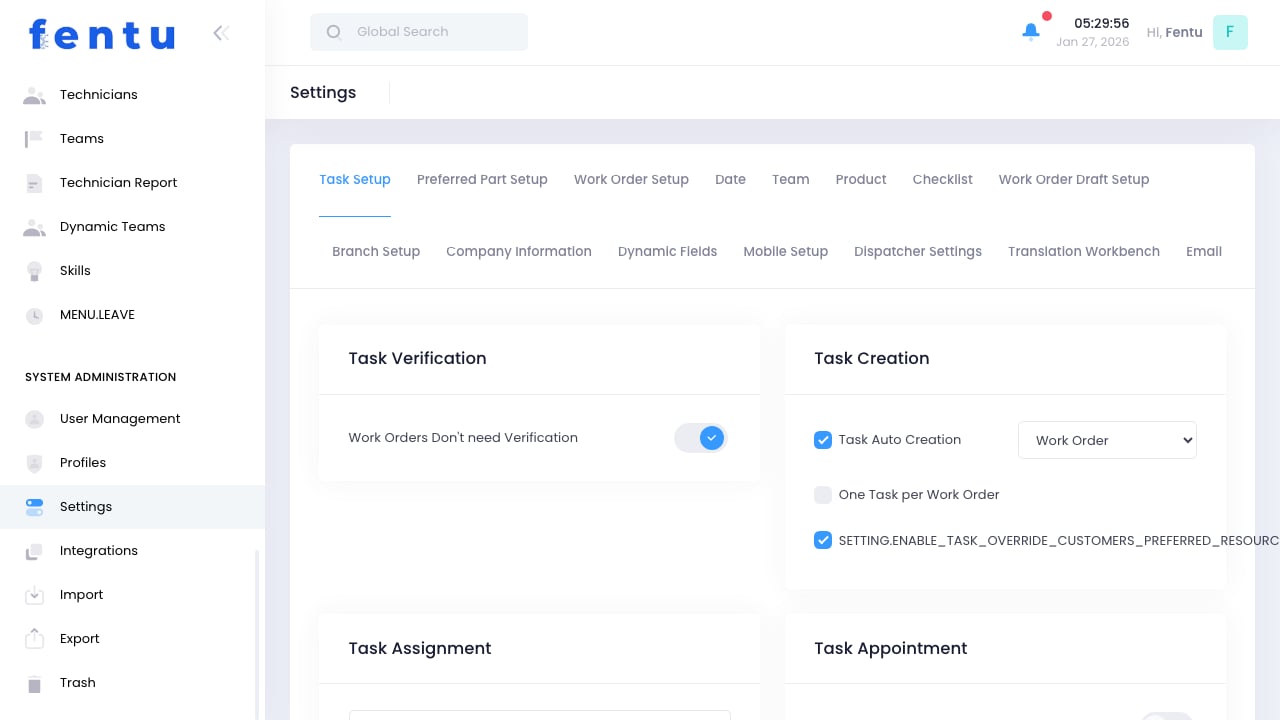
System Settings control global configurations that affect how Fentu FSM operates. These settings define default behaviors, formats, and options used throughout the application.Changes to system settings affect all users. Test changes carefully and communicate modifications to your team.
When to Configure Settings
Access settings to:- Initial Setup - Configure system for your organization
- Customization - Adjust behaviors to match your processes
- Regional Settings - Set date formats, currencies, time zones
- Notification Rules - Configure system alerts
- Default Values - Set organization-wide defaults
Setting Categories
General Settings
Work Order Settings
Scheduling Settings
Notification Settings
Configuring Settings
1
Navigate to Settings
Go to Administration > Settings
2
Select Category
Choose the settings category to configure
3
Review Current Values
See existing configuration
4
Make Changes
Update settings as needed
5
Save Changes
Apply the new configuration
Important Considerations
Before changing settings:- Understand Impact - Know what the setting affects
- Test When Possible - Try in a test environment first
- Communicate Changes - Inform affected users
- Document Changes - Record what was changed and why
Common Configurations
Work Order ID Format
Define how work order numbers are generated:Date Formats
Business Hours
Configure for each day of the week:- Start time
- End time
- Lunch break (if applicable)
- Or mark as non-working day
Business hours affect scheduling suggestions. The system won’t suggest appointments outside configured hours.
Security Settings
Password Policy
Session Settings
Audit Settings
Best Practices
Document Defaults
Document Defaults
Keep a record of all settings and why they’re configured that way. Helps with troubleshooting and onboarding.
Test Before Production
Test Before Production
When possible, test setting changes in a non-production environment before applying to live system.
Communicate Changes
Communicate Changes
Notify users before making changes that affect their workflow. Provide training if needed.
Regular Review
Regular Review
Periodically review settings to ensure they still align with business needs.
Secure Configuration
Secure Configuration
Use strong security settings. Don’t weaken security for convenience.
Backup Before Changes
Backup Before Changes
Keep a record of current settings before making changes so you can revert if needed.
Common Questions
Who can change system settings?
Who can change system settings?
Only users with Administrator profile or specific settings permissions can modify system settings.
When do setting changes take effect?
When do setting changes take effect?
Most changes take effect immediately. Some may require logout/login or cache clear. Check documentation for specific settings.
Can settings be different for different branches?
Can settings be different for different branches?
Some settings are global, others can be configured per branch. Check each setting’s scope.
How do I reset to defaults?
How do I reset to defaults?
Default values are shown for each setting. Manually change back to defaults, or contact support for system-wide reset.
Are settings backed up?
Are settings backed up?
Settings are included in system backups. You can also export settings for safekeeping.
Can I see who changed a setting?
Can I see who changed a setting?
If audit logging is enabled, setting changes are tracked with user, timestamp, and previous value.
Related Documentation
User Management
User account settings
Integrations
Third-party connections
Profiles
Permission configuration
Branch
Branch-specific settings