
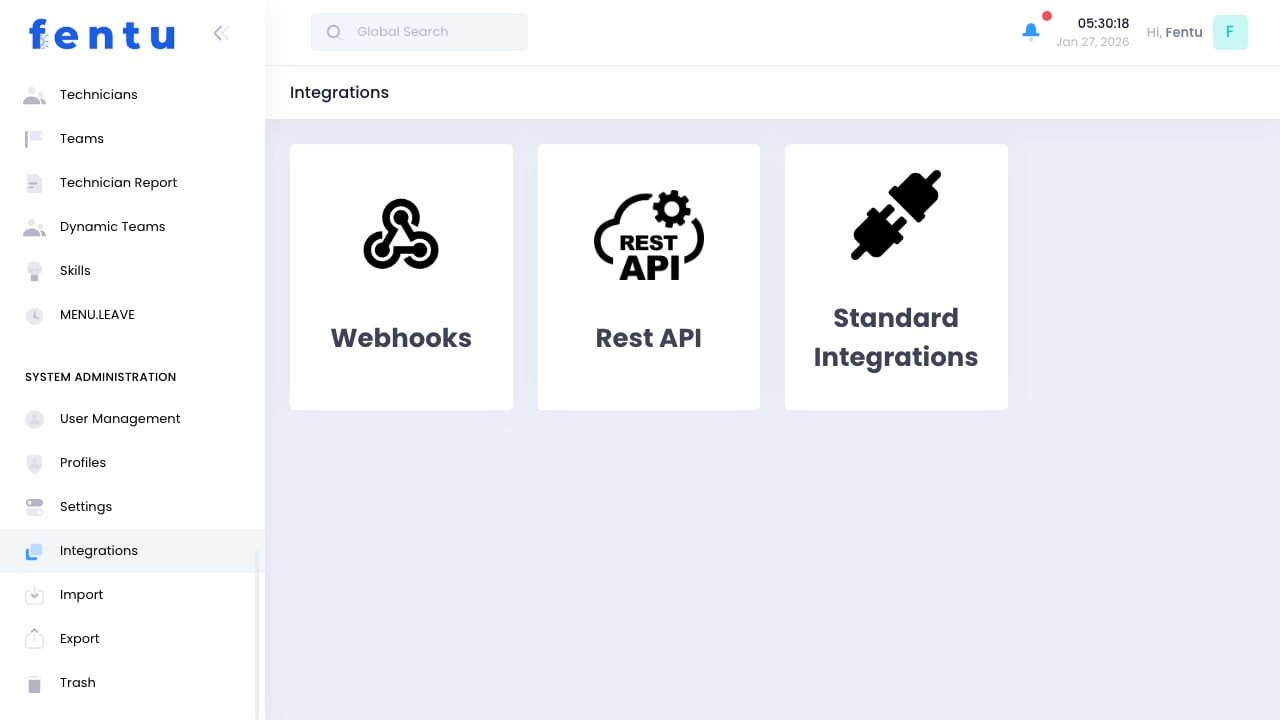
Overview
Integrations connect Fentu FSM with other business systems, enabling data synchronization and automated workflows across your technology stack. This includes ERP systems, accounting software, communication platforms, and more.Integrations streamline operations by eliminating duplicate data entry and ensuring information flows automatically between systems.
When to Configure Integrations
Set up integrations for:- ERP Sync - Connect with SAP, Oracle, or other ERP systems
- Accounting - Sync invoices and payments
- Communication - Enable SMS, email, or messaging
- Mapping - Connect to mapping and routing services
- Payment Processing - Accept payments in the field
- Custom Systems - Connect to proprietary applications
Available Integrations
ERP Integrations
Accounting Integrations
Communication Integrations
Mapping & Routing
Setting Up Integrations
1
Navigate to Integrations
Go to Administration > Integrations
2
Select Integration
Choose the system to connect
3
Enter Credentials
Provide API keys or authentication details
4
Configure Mapping
Map fields between systems
5
Set Sync Options
Choose what syncs and when
6
Test Connection
Verify the integration works
7
Activate
Enable the integration
Authentication Methods
Data Synchronization
Sync Directions
Sync Frequency
Conflict Resolution
When the same data changes in both systems:Choose conflict resolution based on which system is the “source of truth” for each data type.
Managing Integrations
Monitoring
Track integration health:- Last Sync Time - When sync last ran
- Record Count - Items processed
- Error Rate - Failed records
- Latency - Sync delay time
Error Handling
When syncs fail:- Review error logs
- Identify failing records
- Fix data issues
- Retry failed items
- Investigate root causes
Maintenance
Regular integration maintenance:- Review sync logs regularly
- Address errors promptly
- Update credentials before expiration
- Test after system updates
- Monitor performance
Fentu Connect
For complex integration needs, Fentu Connect provides:- Visual Mapping - Drag-and-drop field mapping
- Transformations - Data conversion and formatting
- Scheduling - Flexible sync scheduling
- Monitoring - Detailed sync tracking
- Formula Language - Custom data transformation
Best Practices
Start Simple
Start Simple
Begin with basic integrations and add complexity as needed. Get core sync working before adding advanced features.
Test Thoroughly
Test Thoroughly
Test integrations with sample data before enabling production sync. Verify data maps correctly.
Monitor Actively
Monitor Actively
Check sync status regularly. Address errors before they accumulate.
Document Mappings
Document Mappings
Keep documentation of how fields map between systems. Helps with troubleshooting.
Secure Credentials
Secure Credentials
Use secure credential storage. Rotate credentials periodically.
Plan for Downtime
Plan for Downtime
Know how the integration handles when either system is unavailable.
Common Questions
What if my system isn't listed?
What if my system isn't listed?
Contact Fentu support for custom integration options. Most systems with APIs can be integrated using webhooks or custom connectors.
How do I handle duplicate records?
How do I handle duplicate records?
Configure matching rules to identify existing records. Use unique identifiers (ERP ID, email) to prevent duplicates.
Can I sync historical data?
Can I sync historical data?
Yes, most integrations support initial historical sync. Schedule these during off-hours due to volume.
What happens if an integration breaks?
What happens if an integration breaks?
Data stops syncing but local operations continue. Fix the integration and run a catch-up sync.
Can I have multiple integrations for the same type?
Can I have multiple integrations for the same type?
Typically one integration per system type. For multiple instances (e.g., multiple accounting systems), contact support.
How do I migrate from one system to another?
How do I migrate from one system to another?
Set up the new integration, run parallel for a period, then disable the old one. Plan carefully to avoid data loss.
Related Documentation
Fentu Connect
Advanced integration platform
API Reference
API documentation
Import
Manual data import
Export
Data export