
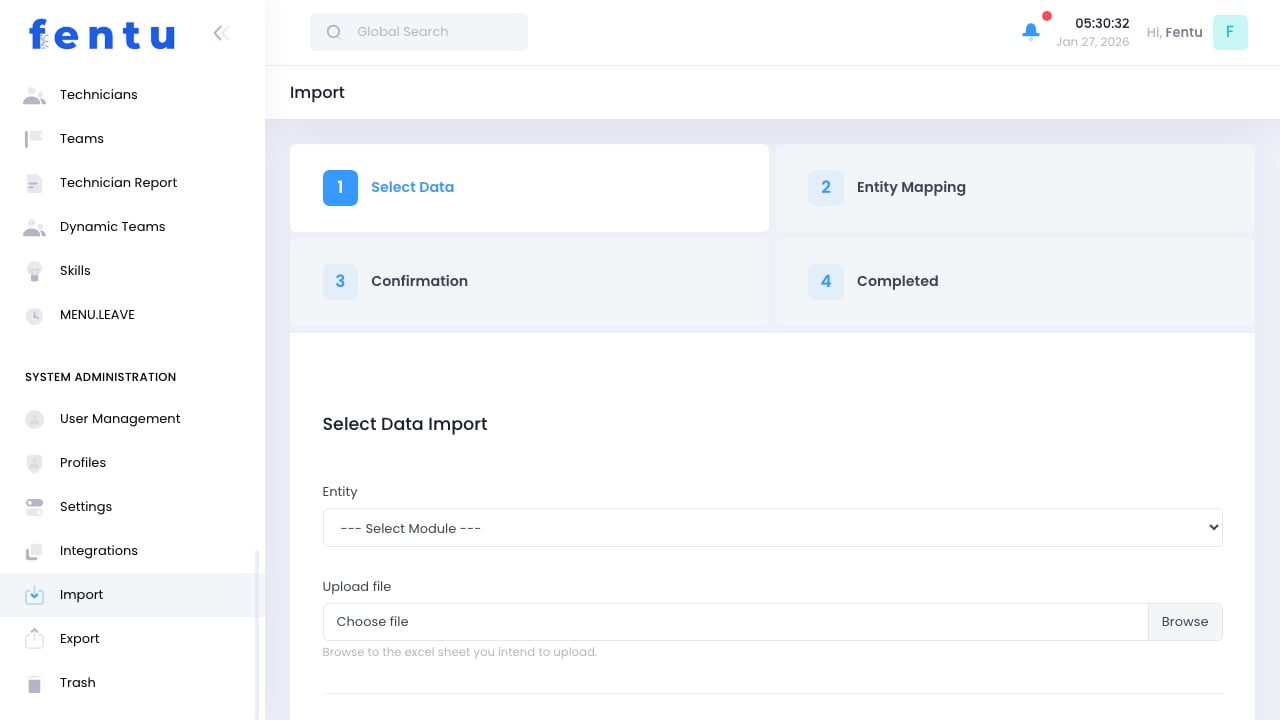
Overview
The Import function allows you to bulk load data into Fentu FSM from spreadsheets and other external sources. This is useful for initial system setup, data migration, and regular data updates.Import is designed for bulk data loading. For ongoing synchronization with external systems, consider using Integrations or Fentu Connect instead.
When to Use Import
Use import for:- Initial Setup - Loading customers, products, technicians
- Data Migration - Moving from another system
- Bulk Updates - Updating many records at once
- Periodic Data Loads - Regular uploads from other sources
- Historical Data - Loading past records
Supported Data Types
Supported File Formats
Import Process
1
Navigate to Import
Go to Administration > Import
2
Select Data Type
Choose what kind of data to import
3
Download Template
Get the import template for required fields
4
Prepare Data
Fill template with your data
5
Upload File
Select and upload your file
6
Map Columns
Match your columns to system fields
7
Preview Data
Review before importing
8
Run Import
Execute the import
9
Review Results
Check success and error counts
Using Templates
Templates provide:- Required column headers
- Expected data formats
- Sample data examples
- Field descriptions
Data Preparation
Required Fields
Each data type has required fields:Data Formatting
Handling References
When importing related data:- Import parent records first (Customer before Contact)
- Use existing system IDs when referencing
- Or use unique codes that match existing records
- Map lookup fields during import
Column Mapping
During import, map your columns to system fields:Handling Extra Columns
- Unmapped columns are ignored
- Required fields must be mapped
- Optional fields can be skipped
Data Transformation
Some transformations available:- Concatenate fields
- Split fields
- Date format conversion
- Case conversion
Validation & Errors
Pre-Import Validation
The system checks:- Required fields present
- Data formats correct
- References valid
- No duplicates (based on settings)
Error Handling
Import Results
After import:- Success Count - Records imported successfully
- Error Count - Records that failed
- Warning Count - Imported with issues
- Error Report - Detailed error list
Download the error report to identify and fix issues. You can re-import just the failed records after corrections.
Duplicate Handling
Duplicate Detection
Duplicates identified by:- System ID
- External/ERP ID
- Unique fields (email, customer number)
- Combination of fields
Best Practices
Use Templates
Use Templates
Always start with the system template. It ensures correct columns and formats.
Test First
Test First
Import a small sample first. Verify everything works before full import.
Clean Data First
Clean Data First
Clean and validate your data before importing. Garbage in, garbage out.
Import Parent Records First
Import Parent Records First
Import in order of dependencies. Customers before contacts, products before assets.
Keep Originals
Keep Originals
Keep backup copies of import files. You may need to reference or re-import.
Schedule Large Imports
Schedule Large Imports
Run large imports during off-hours to minimize system impact.
Common Questions
Can I undo an import?
Can I undo an import?
Not directly. You would need to delete imported records. Consider importing to a test environment first.
What's the maximum file size?
What's the maximum file size?
Depends on configuration, typically 10-50MB. For larger datasets, split into multiple files.
Can I import custom fields?
Can I import custom fields?
Yes, if custom fields are defined in the system. Map your columns to custom fields during import.
How do I update existing records?
How do I update existing records?
Include the system ID in your import and select “Update” for duplicate handling.
What happens if import fails mid-way?
What happens if import fails mid-way?
Records imported before the failure remain. Fix the issue and re-import remaining records.
Can I schedule recurring imports?
Can I schedule recurring imports?
For recurring imports, consider using Integrations instead. Import is designed for manual, occasional use.
Related Documentation
Export
Exporting data
Integrations
Automated data sync
Fentu Connect
Advanced integration
Customers
Customer data